
1. Receiving an Invitation
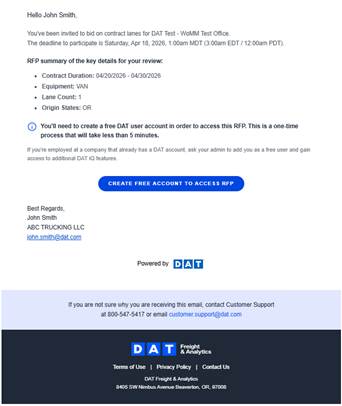
You will receive an email invitation from the shipper with a link to access the RFP. If you do not have a DAT account, you can sign up for free using the same email address.
Access is tied to the invited email. If you log in with a different email, you will not see the RFP. To change the email, the shipper must update the invitation.
2. RFP Homepage
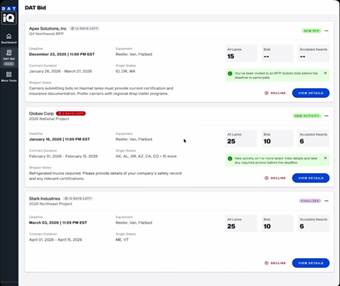
Your homepage shows all RFP invitations as expandable cards. Each card includes the RFP name, countdown badge, status, and key details like equipment types and geographic scope.
If you have one invitation, it opens by default. If you have multiple, they appear collapsed with an “Expand All” option.
The “Archived” section shows completed RFPs.
3. Submitting Bids
Follow these steps to submit your bids:
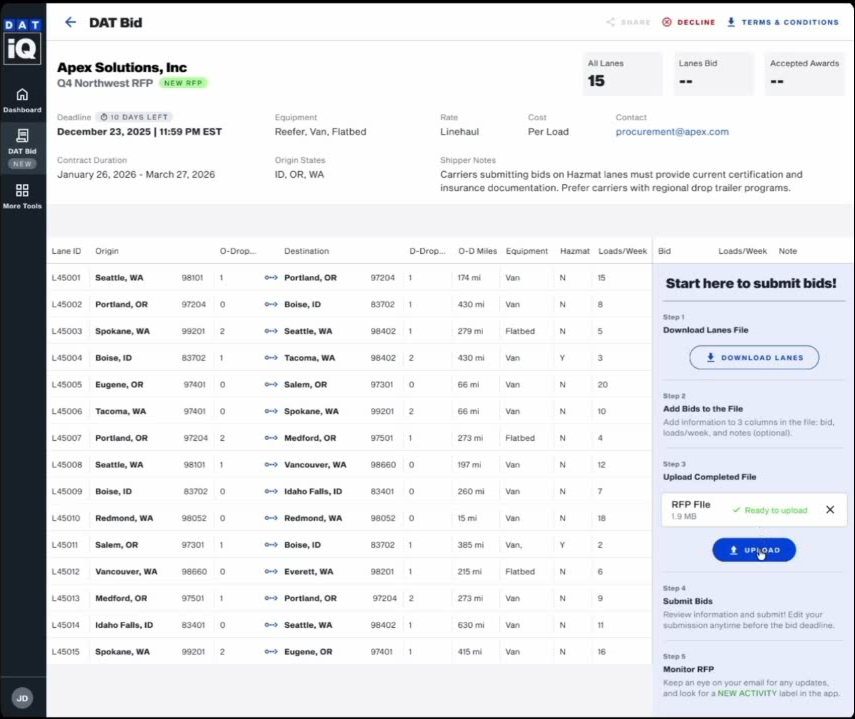
- Click DOWNLOAD LANES and choose Excel or CSV.
- Enter values in the Bid, Volume, and Notes columns. Leave lanes blank if you do not want to bid.
- Upload your completed file. The system validates the data and flags any unusual values.
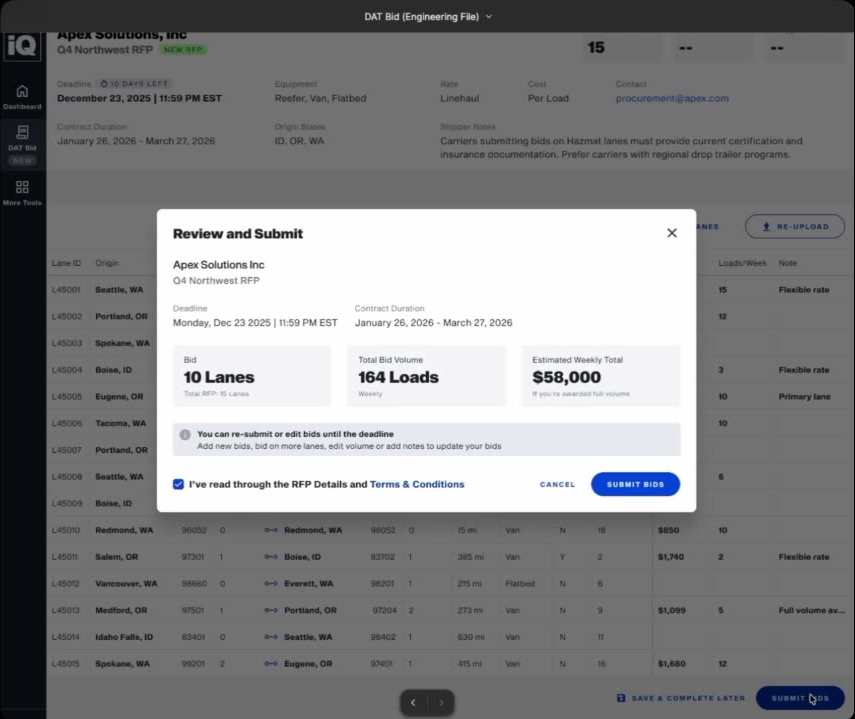
- Review the summary and accept Terms & Conditions if required, then submit.
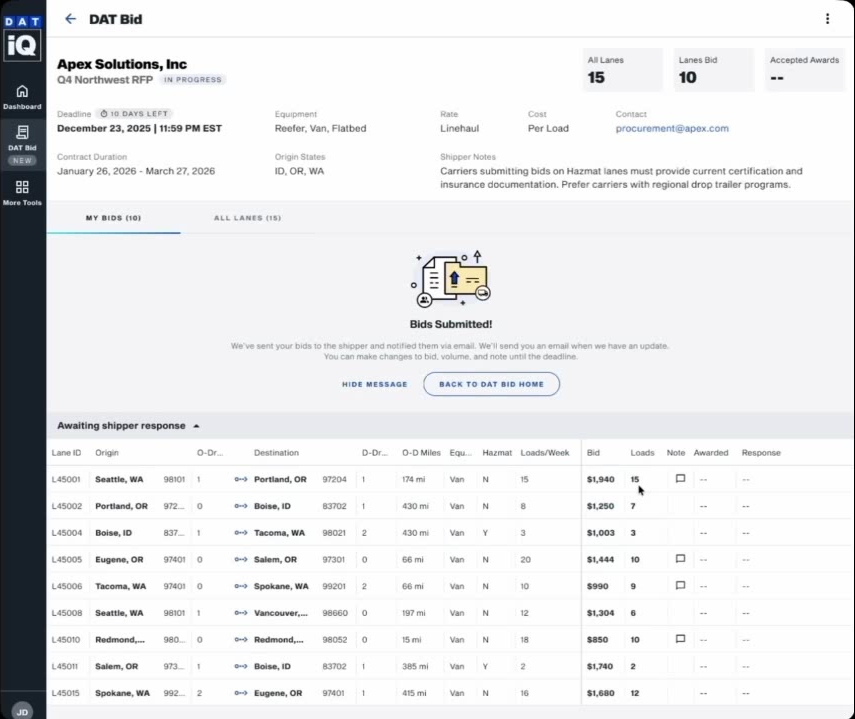
- After submission, track progress, edit bids before the deadline, and respond to updates.
4. Editing and Re-Uploading Bids
You can update your bids before the deadline:
- Double-click a cell to edit and click SUBMIT CHANGES.
- Upload a new file using RE-UPLOAD. This replaces your previous submission.
- Click SAVE & COMPLETE LATER to finish later.
After the deadline, you cannot make changes unless the shipper extends it.
5. Responding to Shipper Activity
After submitting, your lanes are grouped into:
- New Bid Requested: The shipper has asked for a new round of bids. A “NEW ACTIVITY” badge and green banner appear. Carriers enter new rates in the New Bid field and click SUBMIT RESPONSE.
- Declined by Shipper: View feedback if provided. This section is read-only.
- Awaiting Shipper Response: Submitted bids where the shipper has not yet acted. You can still edit these before the deadline.
6. Accepting or Declining Awards
- When the shipper sends awards, your lanes appear under “Awarded Primary” and “Awarded Backup.”
- Select ACCEPT or DECLINE for each lane, or use bulk actions.
- If awarded volume is higher than your bid, a warning appears.
- You can change your response until the deadline.
- After the shipper finalizes the RFP, click the DOWNLOAD FINALIZED CONTRACT can download your contract.
7. Declining an RFP
You can decline the entire RFP before submitting bids by clicking DECLINE. You may add an optional reason. The shipper is notified, and the status updates to DECLINED.